
Wawp notification Message Logs
About wawp logs page
Wawp Message Logs page task
View the history of sending notification messages through your site
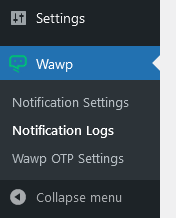
To access the log https://sitename.com/wp-admin/admin.php?page=awp-message-log
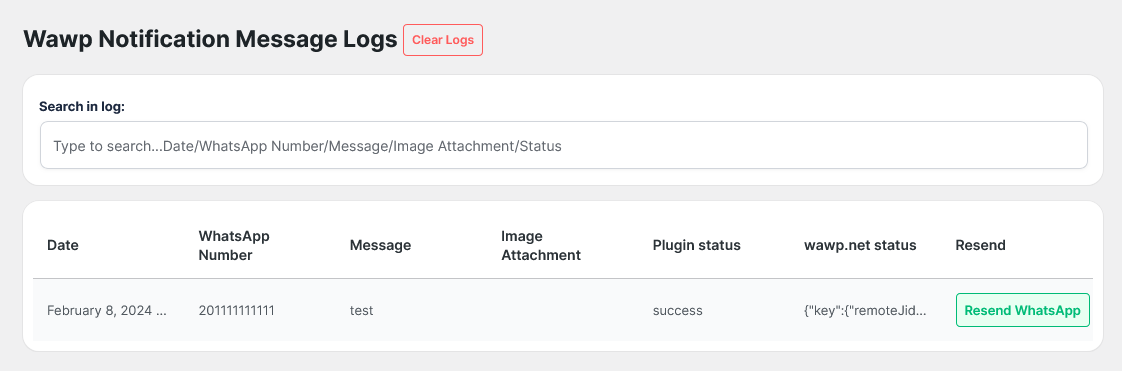
About WAWP Log Search
- Search in log bar: You can search all the details, such as the date, WhatsApp number, sent message, photos, and status, and the search is done instantly

About Log tables elements
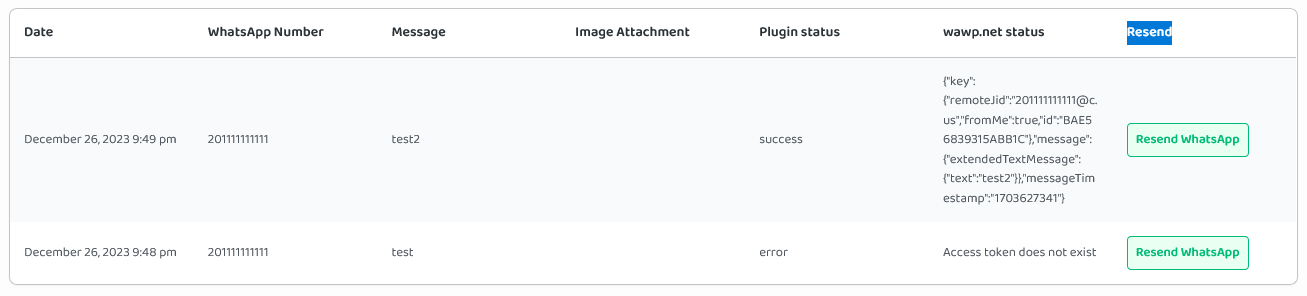
Date: Messages are dated and displayed by most recently sent, so you can stay informed immediately
WhatsApp Number: The number to which the message was sent may be from the help area or from the user account
Message: The text of the message sent to the user
Image Attachment: The Image attached to the message
Plugin status: It gives you the working status of the add-on, success and error
- success: WordPress plugin works well. The plugin sent the Api request and got a response
- error: The error is from the WordPress plugin settings and must be corrected on your site
1m.wawp.net status: Response from the WAWP website that the message was successfully sent, or the reason for not sending it
If the message is successfully sent, you will receive a response that begins with {“key”:{“remoteJid”:”
Resend: You can re-send the message again with the same content and the same number
Clear all log table data
You can clear all log elements with the click of a button. If you want, just click on the Clear Logs button

Be careful, after Clear the log you cannot recover it again
You can get a Log text version of the path
yourwordpress-path/wp-content/uploads/awp-log.log


