How to Send Bulk Messages?
Sending bulk messages has always been considered an excellent chance for small and large companies as well as start-up firms that come to life within the many versions of WhatsApp, because it allows them to quickly send messages to all customers, share promotions, give relevant information, or highlight special events.
What are WhatsApp bulk messages?
WhatsApp bulk messages are a very effective method businesses use to contact leads and build customer loyalty that can include videos and images, as well as the ability to express their message with an unlimited number of characters.
Send Bulk Messages on WAWP
Step 1: Create a list of Contacts
Please create a list of Contact group you want to send
You can create multiple Contact group for multiple campaigns. Limit the number of Contact group set up in the package
The Contact group helps you to set up variables for each contact. These variables you can only use for feature Bulk Messages
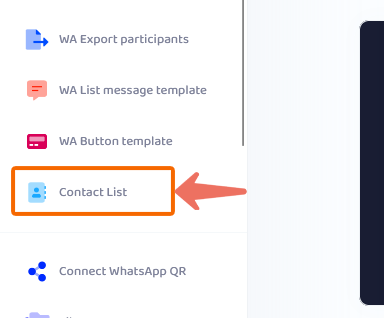
from Side Menu -> Contact List tab
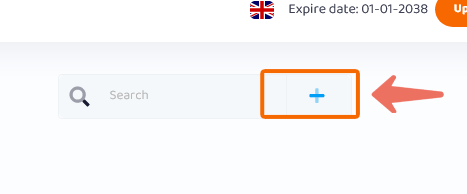
Click on + Button to Add new Contact List
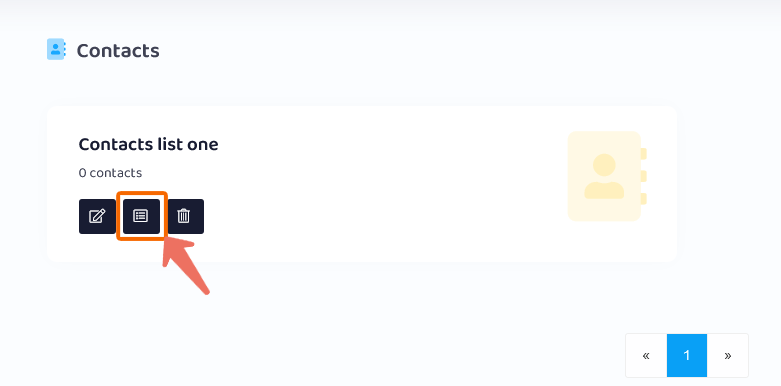
Click on middle Button to Add numbers to Contact List or Import
Step 2: Create a Broadcast (Bulk messaging)
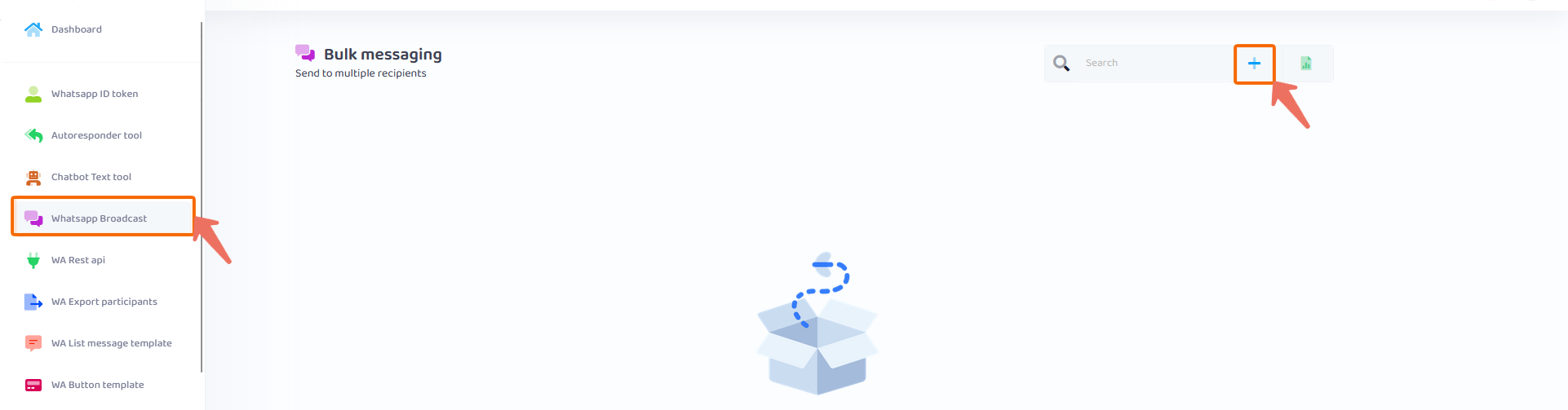
To use this feature please select from side menu Whatsapp Broadcast tab -> Select Add New
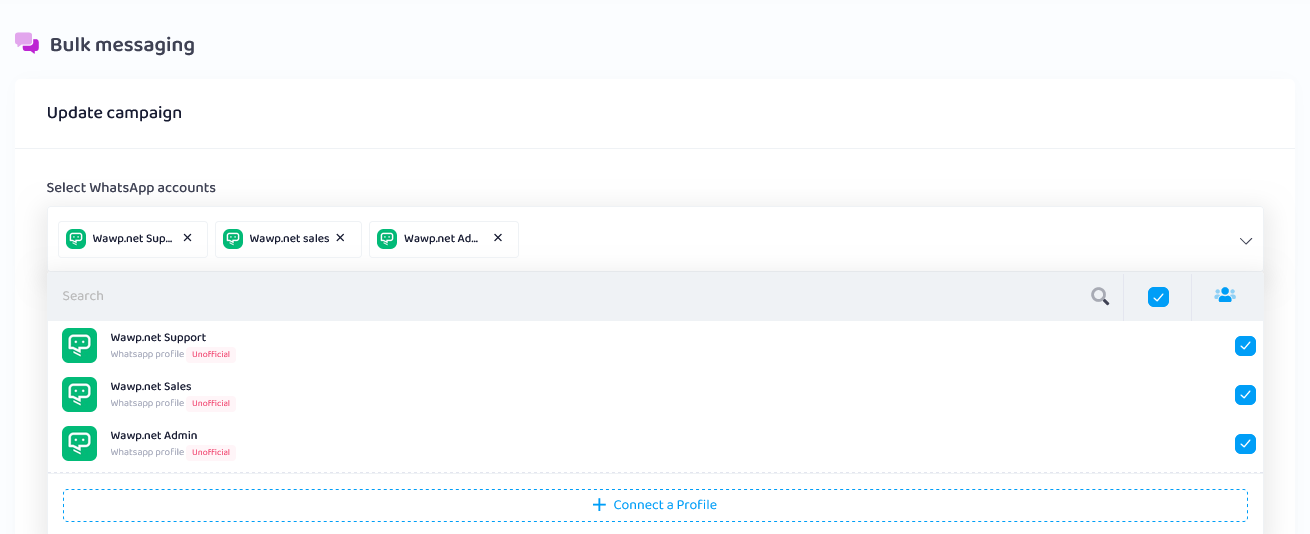
Select WhatsApp accounts: You can choose each account for each campaign or multiple accounts for 1 campaign, the system will automatically rotate each account to send to each contact in the contact list in turn.
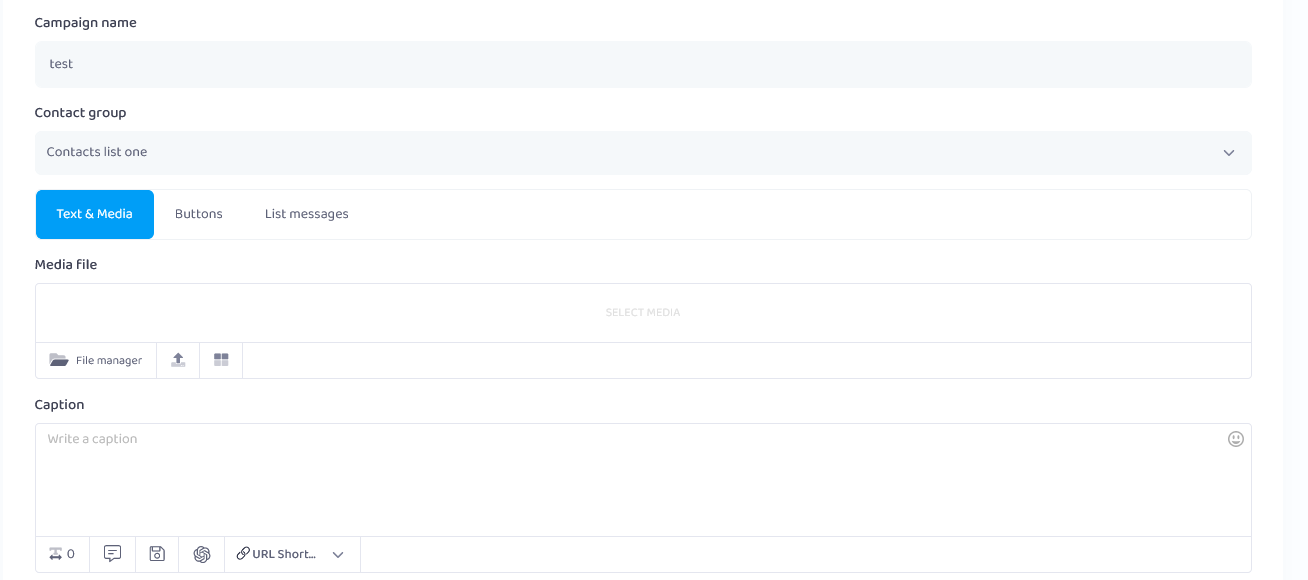
Campaign name: Enter a name for each campaign
Contact group: Select the contact list you want to send.
If the contact list is empty, please create a contact list in the contact tab
Select message type:
There are many types of messages that you can use for the campaign
Text & Media: You can send a message that includes only text or includes both text and media.
- Media file: Supported media types: Image, video, pdf… and all other file types, but mobile app will not support viewing or downloading these files.
- Caption: Enter what you want to send. Do you use a pre-made list of messages using the “Get Caption” function
- Get Caption: Click here to get Saved Captions to post
- Save Caption: Clicker to save new caption in your database
- You can use variables in a contact list using a structure: %name%, %param1%, %param2%,…
- You can random message by Spintax: {Hi|Hello|Hola}
- Use save caption function to save caption
- Support URL Shortener
Buttons: You can create interactions in your messages with buttons. Please create a button template to use. (It currently works on IOS and WhatsApp Web devices only and does not work on Android)
List messages: You can create a list of choices in a message. Please set the list message template to use (It currently works on IOS and WhatsApp Web devices only and does not work on Android)
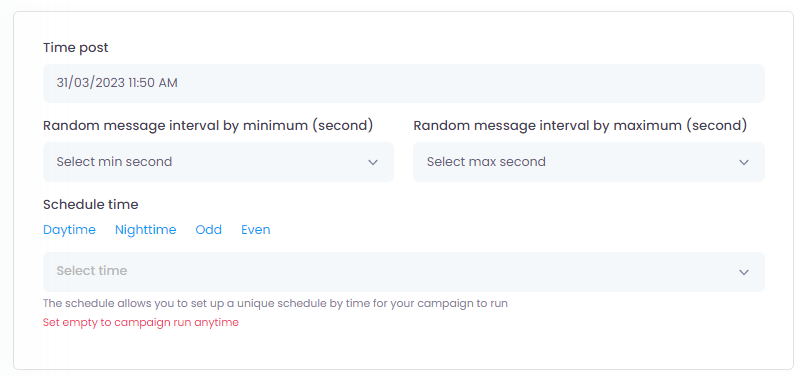
Time post:
Set the time for the campaign
Set random interval between messages
Set up a unique schedule by time for your campaign to run
Step 3: Checking All Campaigns that are Scheduled.
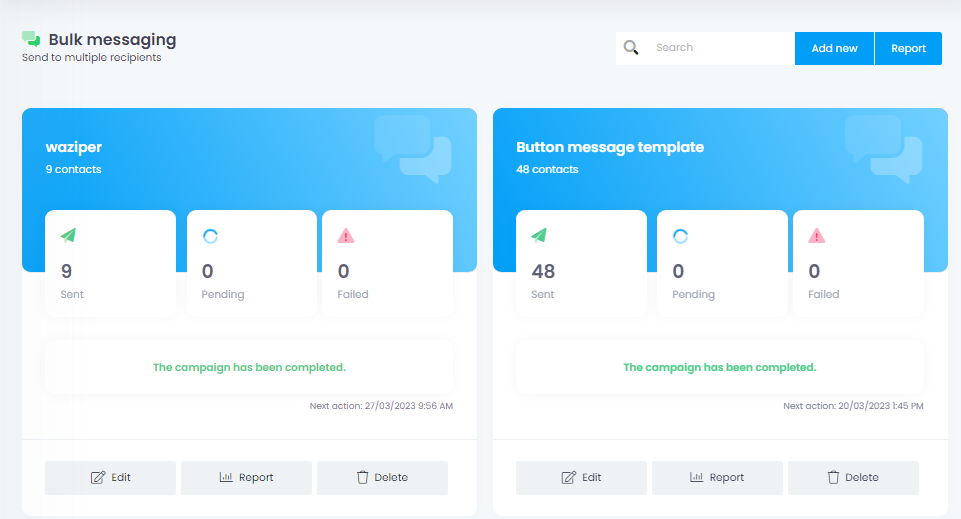
All your Bulk Messages Campaigns will be shown here
- Sent: Number of messages sent successfully
- Pending: Number of messages waiting to be sent
- Failed: Number of failed messages sent
- Report: Export report for campaign, xls file